WWHF Badge Hacking: 2024 Deadwood & 2025 Mile High
Dumping and analyzing the ESP32 firmware on the Wild West Hacking Fest 2024 Deadwood and 2025 Mile High badges: NVS secrets, MQTT, flag solutions, and a few hardware fixes.
Contents
- About Us
- Team
- Other Authors
- Setup
- Install Esptool
- Identify ESP32 COM Port
- Dumping Flash
- Reading the Flash with esptool
- Analyzing Flash Dump
- Installing esp32 image parser
- Showing the dump partitions
- Pulling Data Out of the Partitions
- Reviewing Creds found in NVS
- Wifi Creds
- AWS Bucket
- MQTT
- Connecting to MQTT
- 2024 Deadwood Flags
- Deadwood Flag 1
- Deadwood Flag 2
- Deadwood Flag 3
- Deadwood Flag 4
- 2025 Mile High Flags
- Mile High Flag 1
- Mile High Flag 2
- Mile High Flag 3
- Mile High Flag 4
- Mile High Flag 5+
- Charger Fix
- Other Random Things About This Badge
- Further Reading
- TCM Certification (Affiliate Link)
- Matt Brown YouTube
- Antisyphon IoT Hacking Class
- Custom Firmware
- Adding a Reset
- Extra
- How the scanners report a scan
- Badge Reader Firmware
- Simulating the Binary
- Extra MQTT Topic
- StringsSquared
- Editing NVS Data
- binaryShiftDecode
I want to thank everyone who put on the conference and made the badge. I had a blast and am very thankful for my team.
This is a mashup of both 2024 and 2025 badge hacking. While the ideas and process are the same, some of the output information might be different, and there are separate sections for each year.
About Us#
Team#
- Stephen Glombicki / Logix (@ladderlogic)
- Cooper Wiegand / shiloh (@cw0)
2024 Team Only
- Victor Yakovlyev / chickn nuggies (@chickinnuggies)
- Jon Sullivan / vort (@vort4282)
- Rob Sullivan (@rsulliva)
Other Authors#
Parts on how to solve some of the flags from 2024 are taken from cw0. His writeup can be found here. I tried to make mine more beginner-friendly and show the setup process.
Setup#
To start attacking the ESP32 chip we should see what is in the firmware. To do this we will use esptool to dump.
Install Esptool#
pip install esptool
Identify ESP32 COM Port#
Finding the COM port can be useful as not all tools can automatically find what you are looking for. The steps depend on your platform; pick your OS or the Arduino IDE below.
Windows#
-
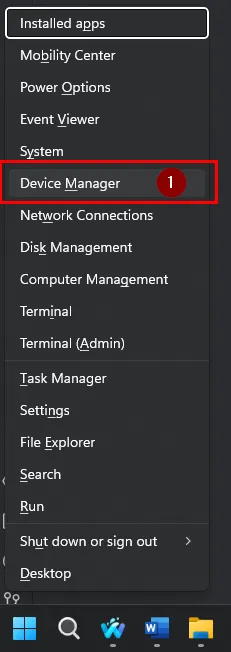
Press Windows Key + X
-
Press Device Manager to launch Device Manager.
-
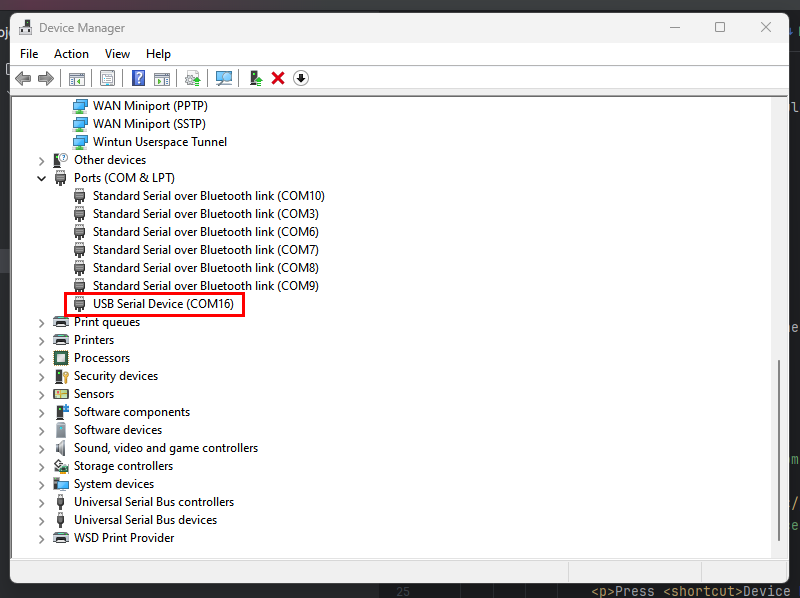
Scroll down to Ports (COM & LPT) and expand the menu
-
Plug your badge into your computer and turn the badge on.
-
The device tree will refresh and you should see a new device under Ports (COM & LPT). This will be the communication port used to talk to the device.
Linux#
This command will list out all active serial devices
ls /dev/tty*
You may need to try a couple to see which one works or you can run this following command to see what each one is
for dev in /dev/ttyUSB*; do sudo udevadm info -q all -n "$dev" | grep -E 'DEVNAME|ID_MODEL'; done
Mac#
This command will list out all active serial devices
ls /dev/cu.*
You may need to try a couple to see which one works or you can run this following command to see what each one is
ls /dev/cu.* | grep -i usb | while read dev; do ioreg -p IOUSB -l -w 0 | grep -A 10 "$dev"; done
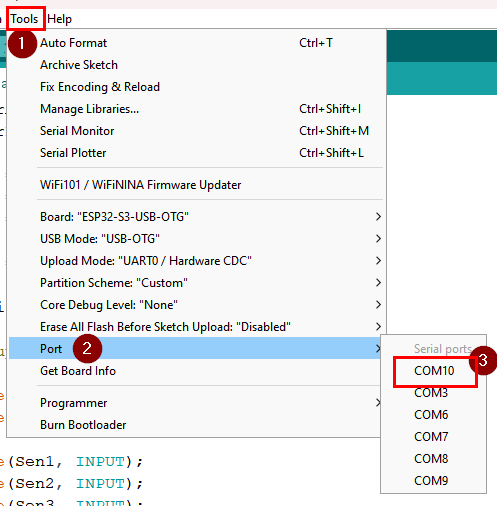
Arduino IDE#
- Install the Arduino IDE
Dumping Flash#
Understanding the Chip#
To dump the flash we will need to know two things: the port and the size of the flash. To find the size of the flash we can run the following command
python -m esptool --port {COMPORT} flash_id
Sample Output:
C:\Users\NSSte>python -m esptool --port COM16 flash_id
esptool.py v4.8.1
Serial port COM16
Connecting...
Detecting chip type... ESP32-S3
Chip is ESP32-S3 (QFN56) (revision v0.2)
Features: WiFi, BLE
Crystal is 40MHz
MAC: 24:58:7c:f4:8e:30
Uploading stub...
Running stub...
Stub running...
Manufacturer: c8
Device: 4017
Detected flash size: 8MB
Flash type set in eFuse: quad (4 data lines)
Flash voltage set by a strapping pin to 3.3V
Hard resetting via RTS pin...
We see we have 8MB of flash, and we also have the MAC address in case we lose the display
More commands can be found in the docs
Reading the Flash with esptool#
Using another command from the docs called read flash we will now dump out the flash contents
python -m esptool -p {COMPORT} -b 460800 read_flash 0 ALL flash_contents.bin
We now should have an 8MB flash file.
Analyzing Flash Dump#
Note
This was written with the 2024 badge. While the steps remain the same, the data/passwords/URLs have changed.
I will be using esp32 image parser to analyze, instead of esp32knife, because I could not get esp32knife to recognize my dump or get it to dump my firmware.
Installing esp32 image parser#
Download the repo#
git clone https://github.com/tenable/esp32_image_parser
Install Requirements#
python -m pip install -r requirements.txt
Showing the dump partitions#
python esp32_image_parser.py show_partitions badge_flash.bin
Annotated Output#
└─$ python esp32_image_parser.py show_partitions badge_flash.bin
reading partition table...
entry 0:
  label      : nvs       -> Non-volatile Storage
  offset     : 0x9000
  length     : 20480
  type       : 1 [DATA]
  sub type   : 2 [WIFI]

entry 1:
  label      : otadata
  offset     : 0xe000
  length     : 8192
  type       : 1 [DATA]
  sub type   : 0 [OTA]

entry 2:
  label      : app0       -> Core 0 Program
  offset     : 0x10000
  length     : 3342336
  type       : 0 [APP]
  sub type   : 16 [ota_0]

entry 3:
  label      : app1       -> Core 1 Program
  offset     : 0x340000
  length     : 3342336
  type       : 0 [APP]
  sub type   : 17 [ota_1]

entry 4:
  label      : spiffs     -> File Systems
  offset     : 0x670000
  length     : 1572864
  type       : 1 [DATA]
  sub type   : 130 [unknown]

entry 5:
  label      : coredump   -> Crash Dumps
  offset     : 0x7f0000
  length     : 65536
  type       : 1 [DATA]
  sub type   : 3 [unknown]

MD5sum:
467eb896e29d1aa938c557f4cdfc4c5b
Done
Pulling Data Out of the Partitions#
Reading Non-Volatile Storage#
ESP32 Image Parser can dump NVS data
python esp32_image_parser.py show_partitions badge_flash.bin
Truncated Output
└─$ python esp32_image_parser.py dump_nvs badge.bin -partition nvs
Dumping partition 'nvs' to nvs_out.bin
Page 0
  page state : FULL
  page seq no. : 0
  page version : 2
  crc 32 : 3115986308
  page entry state bitmap (decoded) : 222222222222222222222222202222222222222222222222222222222222222222222222222222222222222222222222222222222222202222222222222233
  Entry 0
  Bitmap State : Written
    Written Entry 0
      NS Index : 0
      Type : U8
      Span : 1
      ChunkIndex : 255
      Key : badge_config
      Data (U8) : 1

  Entry 1
  Bitmap State : Written
    Written Entry 1
      NS Index : 1
          NS : badge_config
      Type : STR
      Span : 3
      ChunkIndex : 255
      Key : ServerPath
      String :
        Size : 38
        Data : https://wwhf2024.s3.amazonaws.com/v2/

  Entry 4
  Bitmap State : Written
    Written Entry 4
      NS Index : 1
          NS : badge_config
      Type : STR
      Span : 2
      ChunkIndex : 255
      Key : FirmwareName
      String :
        Size : 13
        Data : wwhf2024.bin

  Entry 6
  Bitmap State : Written
    Written Entry 6
      NS Index : 1
          NS : badge_config
      Type : I32
      Span : 1
      ChunkIndex : 255
      Key : HardwareType
      Data (I32) : 4

  Entry 7
  Bitmap State : Written
    Written Entry 7
      NS Index : 1
          NS : badge_config
      Type : STR
      Span : 2
      ChunkIndex : 255
      Key : SSIDName
      String :
        Size : 12
        Data : WWHF Badges

  Entry 9
  Bitmap State : Written
    Written Entry 9
      NS Index : 1
          NS : badge_config
      Type : STR
      Span : 2
      ChunkIndex : 255
      Key : SSIDPassword
      String :
        Size : 18
        Data : 77HackTheEsp3too@

  Entry 11
  Bitmap State : Written
    Written Entry 11
      NS Index : 1
          NS : badge_config
      Type : STR
      Span : 3
      ChunkIndex : 255
      Key : MQTTBroker
      String :
        Size : 34
        Data : w6e1deed.ala.us-east-1.emqxsl.com

  Entry 14
  Bitmap State : Written
    Written Entry 14
      NS Index : 1
          NS : badge_config
      Type : STR
      Span : 2
      ChunkIndex : 255
      Key : MQTTBroadcast
      String :
        Size : 17
        Data : broadcast/action

  Entry 16
  Bitmap State : Written
    Written Entry 16
      NS Index : 1
          NS : badge_config
      Type : STR
      Span : 2
      ChunkIndex : 255
      Key : MQTTEvents
      String :
        Size : 14
        Data : events/device

  Entry 18
  Bitmap State : Written
    Written Entry 18
      NS Index : 1
          NS : badge_config
      Type : STR
      Span : 2
      ChunkIndex : 255
      Key : MQTTUsername
      String :
        Size : 7
        Data : badges

  Entry 20
  Bitmap State : Written
    Written Entry 20
      NS Index : 1
          NS : badge_config
      Type : STR
      Span : 2
      ChunkIndex : 255
      Key : MQTTPassword
      String :
        Size : 20
        Data : TPY_net1pvg*ywf.cjk

  Entry 22
  Bitmap State : Written
    Written Entry 22
      NS Index : 1
          NS : badge_config
      Type : I32
      Span : 1
      ChunkIndex : 255
      Key : MQTTPort
      Data (I32) : 8883

  Entry 23
  Bitmap State : Written
    Written Entry 23
      NS Index : 1
          NS : badge_config
      Type : STR
      Span : 2
      ChunkIndex : 255
      Key : DeviceName
      String :
        Size : 14
        Data : HaySupernova2
Extracting App0, App1 and Other Partitions#
While not the most needed, it is possible to pull out app0 using this program. This could be used to convert to an ELF, but at this time no program that I know of can convert this without errors.
└─$ python esp32_image_parser.py dump_partition badge_flash.bin -partition app0
Dumping partition 'app0' to app0_out.bin
Reviewing Creds found in NVS#
We see three big systems of interest in NVS
Wifi Creds#
We can pull the SSID and Password
SSID: WWHF Badges
Password: 77HackTheEsp3too@
There is nothing of interest using that as all transmissions are encrypted, but if you are not connected to the official Wi-Fi you can create your own.
AWS Bucket#
We see where the bin files are being stored
https://wwhf2024.s3.amazonaws.com/v2/wwhf2024.bin
and we can guess and see that there is another one at
https://wwhf2024.s3.amazonaws.com/v1/wwhf2024.bin
MQTT#
URL:  w6e1deed.ala.us-east-1.emqxsl.com
Username: badges
Password: TPY_net1pvg*ywf.cjk
MQTT Port: 8883

Subscriptions
	- broadcast/action
	- events/device
	- badges (Do not worry see extra for more info on this one)
Connecting to MQTT#
We can either use an online tool or download a MQTT client application
Online Tool#
I found this site to work the best
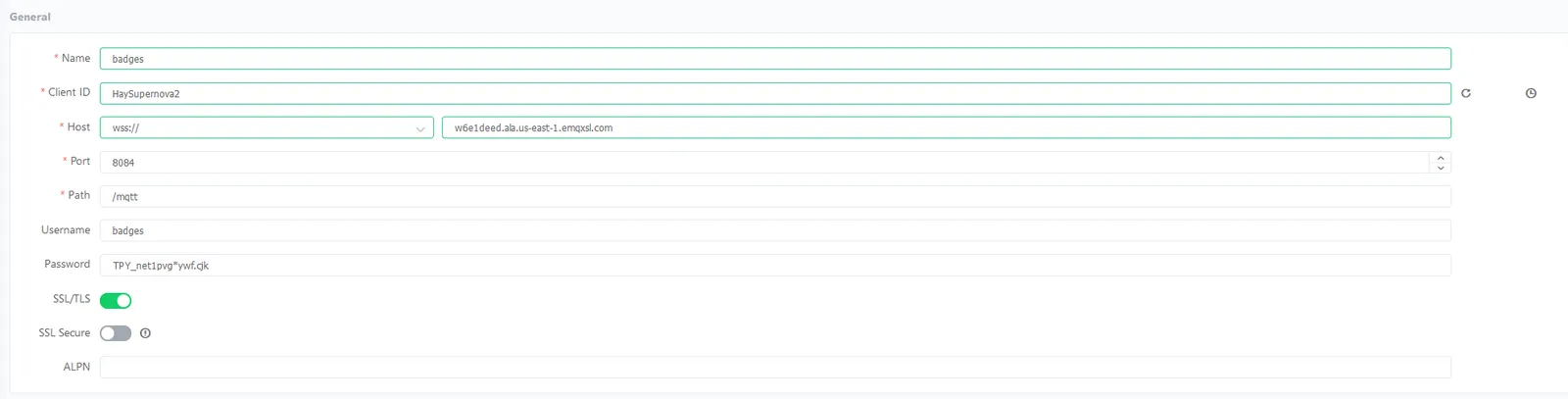
This tool only works with WebSockets, so set it to the WebSocket port of 8084. Use the rest of the credentials found in NVS.
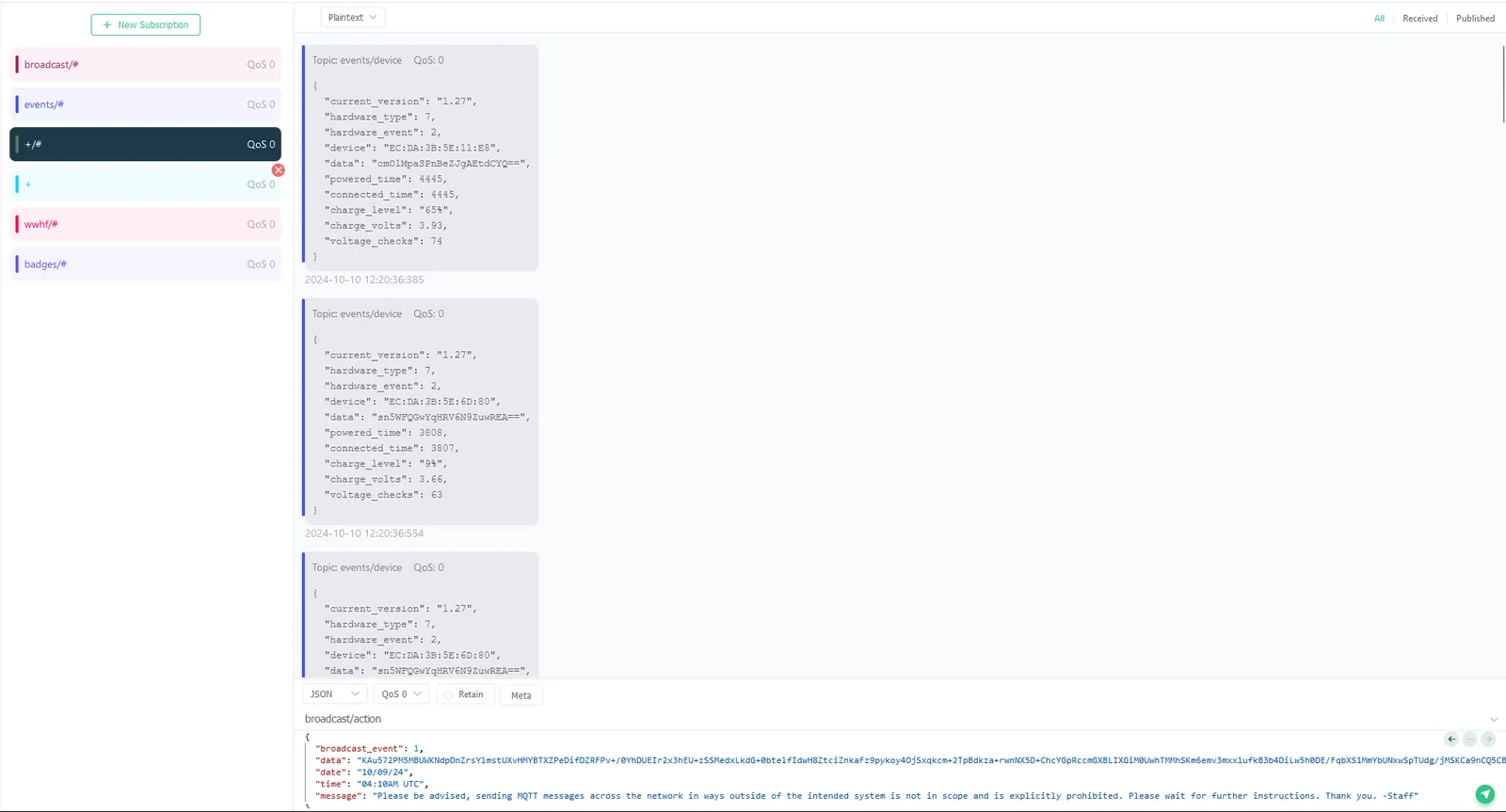
Subscribe to the topics listed, or use +/# to subscribe to all. We have to use this as # is not allowed.
MQTT Client App#
I will use MQTT Explorer as the desktop client to see MQTT messages.
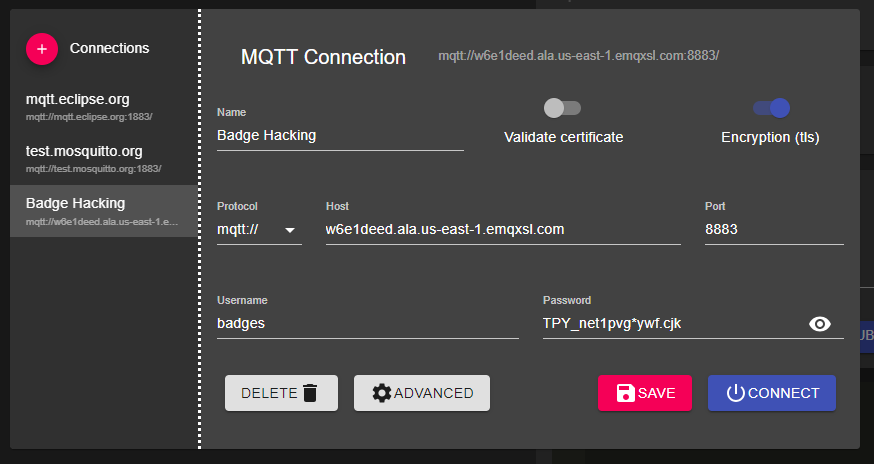
Use the settings found in NVS. Set validate certificate to false and encryption (TLS) to true.
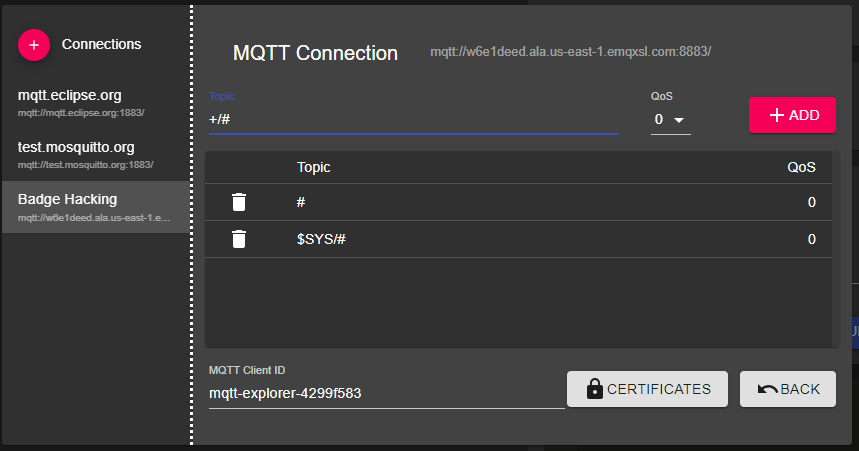
Add a subscription to the topics you want. I recommend +/# as it will let you see every message.
2024 Deadwood Flags#
Deadwood Flag 1#
There are two ways to solve this: either by finding the string in the dump or by physically analyzing the badge.
Physical#
- Begin by powering your badge and then recording the LED sequences flashing on the UFO. (I have a recording here)
- Transcribe the 8 LEDs to binary strings
01010011
01001001
01000111
01111011
01100011
00110100
01101110
01110100
01011111
01110011
01110100
00110000
01110000
01011111
01110100
01101000
00110011
01011111
01110011
00110001
01100111
01101110
00110100
01101100
01111101
- Construct a CyberChef recipe: FromBinary_8
Firmware Strings#
I threw the bin file found in the S3 bucket into a disassembler.
IDA Pro
This is probably the best tool to analyze the binary but with the high cost it may be unavailable to most. I searched for { in strings to hunt down the flag.
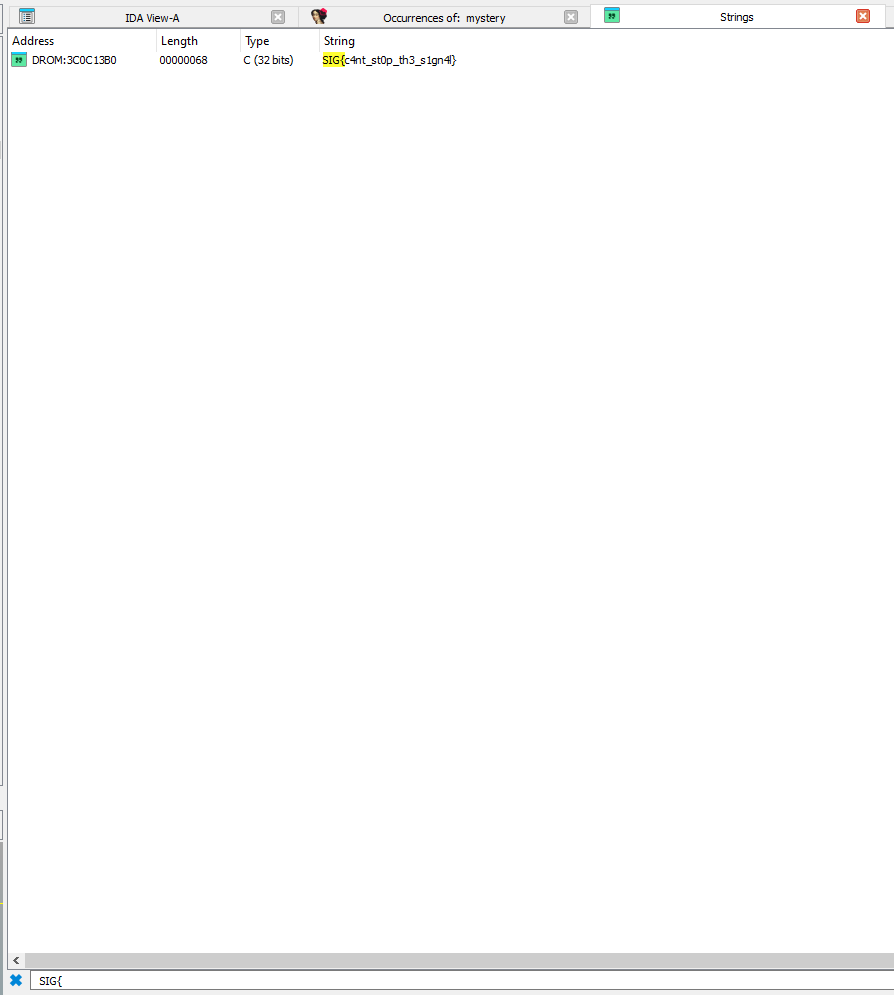
Ghidra
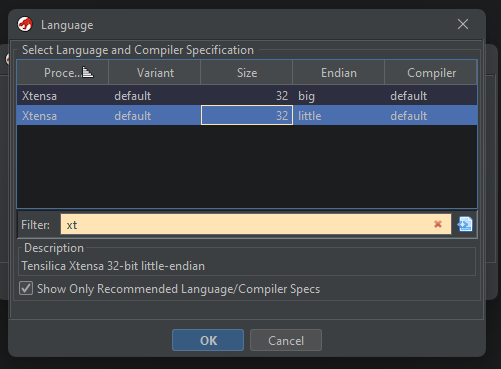
You will want to set your language to Xtensa Little Endian
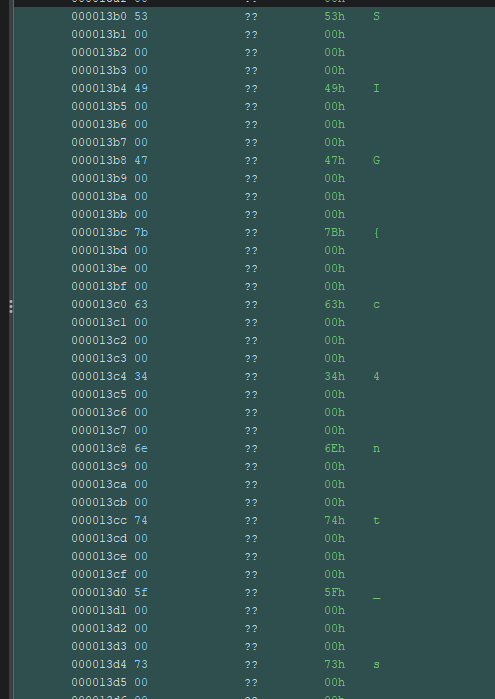
It is still hard to pull out the string on this but if you scroll down you will see your string with a message.
Binary Ninja
This is not the best for decompilation, but strings are on point.
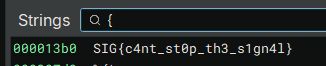
Strings
To show all strings
strings firmware.bin
You can filter down on URL
strings wwhf2024.bin | grep "\.com" -A 4
Or even use bulk extractor to get more info out of the binary
Deadwood Flag 2#
This is the serial message that will appear after the ASCII art. It will take a while for it to pop up.
Serial Output
[BADGE] Loading badge config...
[BADGE] Loading bounties...
  - Vendors: 26
  - Staff: 2
  - Tracks: 4
  - Badge: 4
  - SpecialEvents: 4
[BADGE] WWHF Badge v1.26
[BADGE] 24:58:7C:F4:8E:30
[WiFi] Wi-Fi ready
[WiFi] Station mode started
[WiFi] Sta[WiFi] Station disconnected from AP
[WiFi] Station disconnected from AP
[WiFi] Station disconnected from AP
[WiFi] Station disconnected from AP
[WiFi] Station disconnected from AP
[WiFi] Station disconnected from AP
[WiFi] Station disconnected from AP
[WiFi] Station disconnected from AP
[WiFi] Station disconnected from AP
[WiFi] Station disconnected from AP
[WiFi] Station connected to AP
[WiFi] Station got IP address
[WiFi] Registering device with API server
[BADGE] Writing badge config...
[BADGE] Boounties: Staff 2 | Event 4 | Track 4 | Vendor 26 | Badge 4
[BADGE] Writing bounty tracker...
[WiFi] Registration success
[MQTT] Connecting to MQTT Broker as WrangleCelestial3...
[MQTT] Connected to MQTT broker
[MQTT] Subscribed to broadcast messages
[MQTT] Published registration messages
[BADGE] Added Voltage to index 28: 3.90 volts (59%) [Avg: 3.86 volts (52%)]
[BADGE] Added Voltage to index 29: 3.90 volts (61%) [Avg: 3.86 volts (52%)]
[BADGE] Added Voltage to index 30: 3.90 volts (59%) [Avg: 3.86 volts (52%)]
                           _╓▄▓▓▓╬╩^``▒_,░µ_ _
                         ,▓▓╬╢╩`╓Ü@D╚╩``╙╙╩Ü=_-╔___
                       ╓▓▓█╬╬Ü#R`Ü `         '|»░`░_
                      ║▓█▓╬▒░░Ü ````           `╙\²
                      ▓█▓█▓╬Ü`                   '
                     ▓█▓███╬Ü
                    ▐█▓▓██╬╩H
                    ║█▓██▓╬_
                    '▓▓▓██▓▒╓_   '    ___
                     █▓▓██╩▀▀▓▄▓_   _______
                     ▀║▓██▓▓Ö╠╬█▌,,`╠╠╩▓DHφ_  __,,,╔▄
                   '▀%╣▓█╣╠╬▒╠█▓  \_ ╠==      `      j
                    ' ║██▓╬▒╣███       ``    ,
                     ║▓▓╬╣╫╫▓██▒    `ⁿq∩
                     ╠▓█╣╬║▓███▓_   _  '_
                     ║▓▓█▓▓██████▒_
                     ╠▓█████▌╬▒╬Ü▒__╓_,_
                    |║▓█▓██╬███╬▀╙^`````╚▒
                     [╣█▓█╬╣▓█▒▒∩▒__
                     ╙╠▓▓╬╬╣██╣▒_╙`                     .╓╖__
                    ⁿ^╠║╬╠╬╩║╝Ñ╬▒__                      ╣▓▓███▓▄╖,_
                     |▒╩╣╬]╠ÜÜ╠╬╬R@╓╦∩                ,▓█████▓█▓▓▓▓▓██▓▄,
                     `╔╬╬╣▒╩▒▒∩Ü╠Ü║▒¼               _╣▓████▓█▓▓███▓▓▓▓▓▓▓██▄,
                     ,▄╣╬╬Ñ╬▒╬╬╩ÜÜ╩╩                ╔▓▓█▓▓▓▓▓▓▓█▓█▓█▓██▓▓▓▓▓▓██▄
                _╓▄██▓╬╬╠▒^ÜÅ╚╙▒[ÜÄ               ,╔▓█▓█▓▓▓▓▓▓█▓▓▓███▓█▓▓▓▓▓▓▓▓▓
             ,▄███████╬╬╬░Ü╙²-   ╠_  ,          ▄▄▓▓█▓██▓▓▓█▓▓▓▓▓▓██▓▓██▓▓█▓▓▓▓▓
           ▄████████████▓▒^▒UÜ _jÜ`=_        µ▓▓█▓█████▓█▓▓█▓▓▓▓██▓██▓█▓█▓▓▓▓▓█▓
         ╔█████████████████▓▓@▄▒╔╠╗▄,_╓-__╒,╦╬█████████████▓▓▓▓▓█▓▓▓▓█▓▓▓▓▓▓███▓
        ╔██████████████████████████████▓██▓▓████████▓████▓▓▓█▓██▓█▓▓██▓█▓▓█▓█▓██

        I2luY2x1ZGUgPHN0ZGlvLmg+CiNpbmNsdWRlIDxzdHJpbmcuaD4KI2luY2x1ZGUgPHN0ZGxpYi5oPgoKdm9pZCByKGNoYXIgKnMsIGludCBzaGlmdCkgewogICAgZm9yIChpbnQgaSA9IDA7IHNbaV07IGkrKykgewogICAgICAgIGlmIChzW2ldID49ICdBJyAmJiBzW2ldIDw9ICdaJykgc1tpXSA9ICgoc1tpXSAtICdBJyArIHNoaWZ0KSAlIDI2KSArICdBJzsKICAgICAgICBlbHNlIGlmIChzW2ldID49ICdhJyAmJiBzW2ldIDw9ICd6Jykgc1tpXSA9ICgoc1tpXSAtICdhJyArIHNoaWZ0KSAlIDI2KSArICdhJzsKICAgIH0KfQoKaW50IG1haW4oaW50IGFyZ2MsIGNoYXIgKmFyZ3ZbXSkgewogICAgaWYgKGFyZ2MgIT0gMikgcmV0dXJuIDE7CiAgICBpbnQgc2hpZnQgPSBhdG9pKGFyZ3ZbMV0pOwogICAgY2hhciBmW10gPSAiRlZUe3JMcl90MF8zaTNlbGp1M2UzfSI7CiAgICByKGYsIHNoaWZ0KTsKICAgIHByaW50ZigiJXNcbiIsIGYpOwogICAgcmV0dXJuIDA7Cn0K
[BADGE] Added Voltage to index 31: 3.93 volts (65%) [Avg: 3.86 volts (53%)]
Extraction of string#
Extracting the base64 leaves us with
I2luY2x1ZGUgPHN0ZGlvLmg+CiNpbmNsdWRlIDxzdHJpbmcuaD4KI2luY2x1ZGUgPHN0ZGxpYi5oPgoKdm9pZCByKGNoYXIgKnMsIGludCBzaGlmdCkgewogICAgZm9yIChpbnQgaSA9IDA7IHNbaV07IGkrKykgewogICAgICAgIGlmIChzW2ldID49ICdBJyAmJiBzW2ldIDw9ICdaJykgc1tpXSA9ICgoc1tpXSAtICdBJyArIHNoaWZ0KSAlIDI2KSArICdBJzsKICAgICAgICBlbHNlIGlmIChzW2ldID49ICdhJyAmJiBzW2ldIDw9ICd6Jykgc1tpXSA9ICgoc1tpXSAtICdhJyArIHNoaWZ0KSAlIDI2KSArICdhJzsKICAgIH0KfQoKaW50IG1haW4oaW50IGFyZ2MsIGNoYXIgKmFyZ3ZbXSkgewogICAgaWYgKGFyZ2MgIT0gMikgcmV0dXJuIDE7CiAgICBpbnQgc2hpZnQgPSBhdG9pKGFyZ3ZbMV0pOwogICAgY2hhciBmW10gPSAiRlZUe3JMcl90MF8zaTNlbGp1M2UzfSI7CiAgICByKGYsIHNoaWZ0KTsKICAgIHByaW50ZigiJXNcbiIsIGYpOwogICAgcmV0dXJuIDA7Cn0K
which run through From Base64 in CyberChef gives us
#include <stdio.h>
#include <string.h>
#include <stdlib.h>

void r(char *s, int shift) {
    for (int i = 0; s[i]; i++) {
        if (s[i] >= 'A' && s[i] <= 'Z') s[i] = ((s[i] - 'A' + shift) % 26) + 'A';
        else if (s[i] >= 'a' && s[i] <= 'z') s[i] = ((s[i] - 'a' + shift) % 26) + 'a';
    }
}

int main(int argc, char *argv[]) {
    if (argc != 2) return 1;
    int shift = atoi(argv[1]);
    char f[] = "FVT{rLr_t0_3i3elju3e3}";
    r(f, shift);
    printf("%s\n", f);
    return 0;
}
This appears to be a simple Caesar cipher. Using the CyberChef ROT13 brute force we can see an option that makes sense.
Amount =  1: GWU{sMs_u0_3j3fmkv3f3}
Amount =  2: HXV{tNt_v0_3k3gnlw3g3}
Amount =  3: IYW{uOu_w0_3l3homx3h3}
Amount =  4: JZX{vPv_x0_3m3ipny3i3}
Amount =  5: KAY{wQw_y0_3n3jqoz3j3}
Amount =  6: LBZ{xRx_z0_3o3krpa3k3}
Amount =  7: MCA{ySy_a0_3p3lsqb3l3}
Amount =  8: NDB{zTz_b0_3q3mtrc3m3}
Amount =  9: OEC{aUa_c0_3r3nusd3n3}
Amount = 10: PFD{bVb_d0_3s3ovte3o3}
Amount = 11: QGE{cWc_e0_3t3pwuf3p3}
Amount = 12: RHF{dXd_f0_3u3qxvg3q3}
Amount = 13: SIG{eYe_g0_3v3rywh3r3}
Amount = 14: TJH{fZf_h0_3w3szxi3s3}
Amount = 15: UKI{gAg_i0_3x3tayj3t3}
Amount = 16: VLJ{hBh_j0_3y3ubzk3u3}
Amount = 17: WMK{iCi_k0_3z3vcal3v3}
Amount = 18: XNL{jDj_l0_3a3wdbm3w3}
Amount = 19: YOM{kEk_m0_3b3xecn3x3}
Amount = 20: ZPN{lFl_n0_3c3yfdo3y3}
Amount = 21: AQO{mGm_o0_3d3zgep3z3}
Amount = 22: BRP{nHn_p0_3e3ahfq3a3}
Amount = 23: CSQ{oIo_q0_3f3bigr3b3}
Amount = 24: DTR{pJp_r0_3g3cjhs3c3}
Amount = 25: EUS{qKq_s0_3h3dkit3d3}
SIG{eYe_g0_3v3rywh3r3}
Alternate Method#
We can also find this large block of text through strings. Then follow similar methods to above.
strings wwhf2024.bin | awk 'length($0) > 200' | base64 -d
Deadwood Flag 3#
The LED in the bottom right will sometimes burst in a weird pattern. Setting up a YouTube live stream to catch this we can create a video.
Decoding leaves us with
.... .- -.-. -.- - .... . ... .. --. -. .- .-.. ...
Putting this into English gives us
hackthesignals
Deadwood Flag 4#
This one is very tricky but is the decryption of the mystery signal. If you monitored MQTT long enough you might have seen a mystery signal event pop up. In the data field is an encrypted blob that contains the flag.
{
  "broadcast_event": 12,
  "data": "WfFIAmqjR7RjIJ8fsPdkeUKIUxqrkeZSk9G2+rUKtVv5H1XOmrEWpZjyRUtZVL2AXp4yRFwLkc4C9MgnBwarOA==",
  "date": "10/09/24",
  "time": "05:51PM UTC",
  "message": "Mystery Signal"
}
We know that the badge can decrypt the message so we need some way to send it a message so the decryption key can be in memory. We made the badge get extra points by sending it a scan message. (see Extra for how this was done)
When we are ready to download memory we do
python -m esptool dump_mem 0x40380000 393216 out.bin
We choose this memory section based on the ESP32 docs. (S3 mem sections from @precurse)
To extract all AES keys that are the size we are looking for
strings out.bin | awk 'length($0) == 16'
Using the key to decrypt we get the message. CyberChef
2025 Mile High Flags#
Mile High Flag 1#
- Turn on the badge and record the light flashes (video uploaded here)
- Transcribe the 8 LEDs to binary strings
01010111
01000111
01001110
01111011
01110111
00110100
01101110
01110100
00110011
01100100
01011111
01100100
00110011
00110100
01100100
01011111
00110000
01110010
01011111
00110100
01101100
00110001
01110110
00110011
- CyberChef Decode (LINK)
Mile High Flag 2#
This is the serial message that will appear after the ASCII art. It will take a while for it to pop up.
Serial Output
                           _╓▄▓▓▓╬╩^``▒_,░µ_ _
                         ,▓▓╬╢╩`╓Ü@D╚╩``╙╙╩Ü=_-╔___
                       ╓▓▓█╬╬Ü#R`Ü `         '|»░`░_
                      ║▓█▓╬▒░░Ü ````           `╙\²
                      ▓█▓█▓╬Ü`                   '
                     ▓█▓███╬Ü
                    ▐█▓▓██╬╩H
                    ║█▓██▓╬_
                    '▓▓▓██▓▒╓_   '    ___
                     █▓▓██╩▀▀▓▄▓_   _______
                     ▀║▓██▓▓Ö╠╬█▌,,`╠╠╩▓DHφ_  __,,,╔▄
                   '▀%╣▓█╣╠╬▒╠█▓  \_ ╠==      `      j
                    ' ║██▓╬▒╣███       ``    ,
                     ║▓▓╬╣╫╫▓██▒    `ⁿq∩
                     ╠▓█╣╬║▓███▓_   _  '_
                     ║▓▓█▓▓██████▒_
                     ╠▓█████▌╬▒╬Ü▒__╓_,_
                    |║▓█▓██╬███╬▀╙^`````╚▒
                     [╣█▓█╬╣▓█▒▒∩▒__
                     ╙╠▓▓╬╬╣██╣▒_╙`                     .╓╖__
                    ⁿ^╠║╬╠╬╩║╝Ñ╬▒__                      ╣▓▓███▓▄╖,_
                     |▒╩╣╬]╠ÜÜ╠╬╬R@╓╦∩                ,▓█████▓█▓▓▓▓▓██▓▄,
                     `╔╬╬╣▒╩▒▒∩Ü╠Ü║▒¼               _╣▓████▓█▓▓███▓▓▓▓▓▓▓██▄,
                     ,▄╣╬╬Ñ╬▒╬╬╩ÜÜ╩╩                ╔▓▓█▓▓▓▓▓▓▓█▓█▓█▓██▓▓▓▓▓▓██▄
                _╓▄██▓╬╬╠▒^ÜÅ╚╙▒[ÜÄ               ,╔▓█▓█▓▓▓▓▓▓█▓▓▓███▓█▓▓▓▓▓▓▓▓▓
             ,▄███████╬╬╬░Ü╙²-   ╠_  ,          ▄▄▓▓█▓██▓▓▓█▓▓▓▓▓▓██▓▓██▓▓█▓▓▓▓▓
           ▄████████████▓▒^▒UÜ _jÜ`=_        µ▓▓█▓█████▓█▓▓█▓▓▓▓██▓██▓█▓█▓▓▓▓▓█▓
         ╔█████████████████▓▓@▄▒╔╠╗▄,_╓-__╒,╦╬█████████████▓▓▓▓▓█▓▓▓▓█▓▓▓▓▓▓███▓
        ╔██████████████████████████████▓██▓▓████████▓████▓▓▓█▓██▓█▓▓██▓█▓▓█▓█▓██
        JVNJAAADAAAAABAAAAAP77YAAC4AAAAAAAAAAACAAAAAAAAAAAAAAAAAAAAAAAAAAAAAAAAAAAAAAAAAAAAAAAAAAAAAAAAAQAAAAAAOD65A4AFUBHGSDOABJTGSCVDINFZSA4DSN5TXEYLNEBRWC3TON52CAYTFEBZHK3RANFXCARCPKMQG233EMUXA2DIKEQAAAAAAAAAAAUCFAAAEYAIDABZYFCHUAAAAAAAAAAAABYAAEIAAWAJQAAAAQAAAAAEAAAAAAAAABKRHAAAAAIAAAAAEAAAAAAAEAAAAEAAAAAACAAAAIAAAAAAAAAAAAQAAAAAAAAAAAAEAAAAAAAQAAAAAAAAAAMAGBBIAAAIAAAAQAAAAAAAQAAABAAAAAAAAAAAQAAAAAAAAAAAAAAAAABMCOAAAJ4AAAAAAIAAAAKAFAAAAAAAAAAAAAAAAAAAAAAAAAAAAAADAAAAAYAAAACECMAAAKQAAAAAAAAAAAAAAAAAAAAAAAAAAAAAAAAAAAAAAAAAAAAAAAAAAAAAAAAAAAAAAAAAAAAAAEAAAACAAAAAAAAAAAAAAAAAABAQAAACIAAAAAAAAAAAAAAAAAAXHIZLYOQAAAAFQA4AAAABAAAAAACAAAAAAEAAAAAAAAAAAAAAAAAAAAAACAAAAMAXHE43SMMAAAABIAUAAAACAAAAAABQAAAAAUAAAAAAAAAAAAAAAAAAAAAAEAAAAIAXHEZLMN5RQAAAMAAAAAADAAAAAAAQAAAABAAAAAAAAAAAAAAAAAAAAAAAEAAAAIIAAAAAAAAAAAAAAAAAAAAAAAAAIYJYAAAAAAAAAJAAAAAACAACQBPBAAAAMYBIAAAAQAAAAAIAAABQAAAAAAAAAAAAAAAAAAAAAAAAAAAAAAAAAAAAAAAAAAAAAAAAAAAAAAAAAAAAAAAAAAAAAAAAAAAABGMAEABEAAAAAAEAAAEIAPYAQAAAEN4HAAAAKRUIQAAABBILAWKYXAADAO7QBAAAAIB3PB4AAACQ5MHIZ2AAHC5MAWB36AEAAABDPBYAAACX6AQGAQLOYAZZRAAAABIGSWAAJFIFAAKRCAIUBCAAABIACULTSAEAAA4EAAEAAABBKIJJUUQQBAAAQAAAAAAAAYAAAAB3DILRQFYZTAMZRHEAAAAAAAUAGYAAAADWACAAAEN7AAACYAIAAAQACAAACGU3UOJUW4Z3TAAAAAAEYAQAAALAAAAACGVKTADCAIAAACAAAAABDI5KUSRAAAAANIBAAAD4AAAAAENBGY33CAAAAAAAAAAAAEAAAAFLRIAQABEAAAAAA7IATGAAWAAAACAAAAAIQAAAAAIAAAAABAAAAABAAAAABCAAAAAGQAAAAAEAAAAABAAAAAAIAAAAAAAFJAEAQAAAAAAAAMAHOAD7ACBQALEA74AIGAAPAB2YBB4AB4AQAAADAAWYAO4AQMACAAHDQCBQAW4AMOAIGAB2ABRYBAYAJCAGHAEDAADQBY4AQMACEADDQCBQA2YAP4AIGAATQD7QBAYADEAH6AEDAANYCXMAQMAERAG5QCBQA3EA3WAIAAAAAAAIAAAAAAAABAAAQAAAACAALGAIAAA6QAAIAAEABCAAKAA5AAUBAAAAAAAERACRQCPIAAEAKIIAAAAAABEIAYIAUCAABACTSAAAAAAAIMGG6AEDAAAIAWAQAAAAAACIRRZABIEAACAAJADPACAIACEAN4AIGAAMQBXQBBIACSAG6AEIAAMIA3YARAABZADPACEAAIEAN4AIQABEQBXQBCAAFCAG6AEIAAWIA3YARAADBADPACAIANEAN4AIVABYQBXQBCUAICAEYAERABAIAFUBCMAEBADPACKYAPEAN4AIGAATQAWYA5YAC4AALABCQALQACMAE4ABOAANQA3IAFYACGADWAAXAAKYAWQAC4ABTAC7QALQAHMAMUABOABBQBVYAFYAEWAFUAAXAAUYAWQAEGADDADRAAQYANMAOQAA2AACIAAAAAEAAAAAAAAAAAAAAAAAAAAFDAEAAACIAAAAAAAAAAAAAAAAAGEAA6AAAAAAAAAAAAA6E233EOVWGKPQAMRQXIYIAKN4XG5DFNUXFE5LOORUW2ZIAIRSWE5LHM5QWE3DFIF2HI4TJMJ2XIZIAJZ2WY3DBMJWGKQLUORZGSYTVORSQAQLTONSW2YTMPFKGS5DMMVAXI5DSNFRHK5DFABKGC4THMV2EM4TBNVSXO33SNNAXI5DSNFRHK5DFABAXG43FNVRGY6KGNFWGKVTFOJZWS33OIF2HI4TJMJ2XIZIAIFZXGZLNMJWHSSLOMZXXE3LBORUW63TBNRLGK4TTNFXW4QLUORZGSYTVORSQAQLTONSW2YTMPFBW63TGNFTXK4TBORUW63SBOR2HE2LCOV2GKACSMVTFGYLGMV2HSUTVNRSXGQLUORZGSYTVORSQAQ3PNVYGS3DBORUW63SSMVWGC6DBORUW63TTIF2HI4TJMJ2XIZIAIFZXGZLNMJWHSUDSN5SHKY3UIF2HI4TJMJ2XIZIAJZ2WY3DBMJWGKQ3PNZ2GK6DUIF2HI4TJMJ2XIZIAIFZXGZLNMJWHSQ3PNVYGC3TZIF2HI4TJMJ2XIZIAKJ2W45DJNVSUG33NOBQXI2LCNFWGS5DZIF2HI4TJMJ2XIZIAKN4XG5DFNUXFE5LOORUW2ZJOKZSXE43JN5XGS3THABJXI4TJNZTQAZ3FORPUYZLOM52GQACUOJQWS3AAKRZGC2LMFZSGY3AAKBZG6Z3SMFWQAU3ZON2GK3IAJVQWS3QAKN4XG5DFNUXFEZLGNRSWG5DJN5XAAQ3IMFZAALTDORXXEABOMNRXI33SABJXS43UMVWS4RDJMFTW433TORUWG4YAKN4XG5DFNUXFE5LOORUW2ZJOINXW24DJNRSXEU3FOJ3GSY3FOMAEIZLCOVTWO2LOM5GW6ZDFOMAGOZLUL5BWQYLSOMAE6YTKMVRXIAAAAAACSUAAIAAESAD4ABQAANYANMAGGACYAB2QA4QAGIAG6ACYABQQANAAOEADIADVAB5AAAAAJS4BZ2CCTJQUTKJVWCEJLULXNEAAIIABAEEAGIAAAECSAAIBCEIQIIABAEHAIIABAECQOBYEDUBQQAQOAMQAACAEEAAQGCAFEAAQCHIDBCYD6X37CHKQUOQCAYHAGAAABYBQAAABBAAQACAAAAAAAAA6AEAACACUAILFO4TBOBHG63SFPBRWK4DUNFXW4VDIOJXXO4YBBAAQABYBAAAAAAB5AEABQLSOIVKEG33SMVAXA4BMKZSXE43JN5XD25RZFYYACACUBYKEM4TBNVSXO33SNNCGS43QNRQXSTTBNVSQQLSOIVKCAOJOGAFACAAFKRZGC2LMAAAAUAIAAVCGKYTVM4AAADABAADTCLRQFYYC4MAAAAFACAAFGEXDALRQAAAAKAIAAEAAABIBAAAAAAAIAEAAWAAAAAAAAAAAAAAABK74USRQAAKNKABAAAAAKUAAAAG4EYAABXAIAAAAAAAAAAAAAAAAAEAAAAATAAAAAJYAAAADCJYAAAYQSAAAAAAAAAAAAAAAAAAAAAABAAAAAAAAAAAAAAAAAAAAAAAAAUSTIRJR2K22BJA324CCRU4SZVEQ6NY7YAIAAAAEGOS4KVZWK4TTLRGWS23FEBDGK3DDNBOEIZLTNN2G64C4KRZGC2LMLRXWE2S4IRSWE5LHLRXGK5BZFYYFYVDSMFUWYLTQMRRAAU2IIEZDKNQADUVVUCSBXVYEEDJZFTKJB43R7SV7ZJBDEP2X432CDQOMMKOWDYEIAJYAAAAAAAAAAAAAAAE2E4AAAABAAAAAAAAAAAAAAAAAAAAAAAAAAAAAAAAAAAAIYJYAAAAAAAAAAAAAAAAAABPUG33SIV4GKTLBNFXAA3LTMNXXEZLFFZSGY3AAAAAAAAH7EUACAQAAAAAAAAAAAAAAAAAAAAAAAAAAAAAAAAAAAAAAAAAAAAAAAAAAAAAAAAAAAAAAAAAAAAAAAAAAAAAAAAAAAAAAAAAAAAAAAAAAAAAAAAAAAAAAAAAAAAAAAAAAAAAAAAAAAAAAAAAAAAAAAAAAAAAAAAACAAIAAAAAEAAABAAYAAAAAUAAACAAAAAAAAAAAAAAAAAAAAAAAAAQAAIAAAADQAAAQAAAAAAAAAAAAAAAAAAAAAAAAEAAAAAAACAAAAAAAAAAAAAAAAAAAAAAAAAAAAABAAAQAAAANAAABAAAAAAAAAAAAAAAAAAAAAAAAAIAAAAAAABIAMAABECAAAAJQAQAAAAAAAAAAAAAAAEYAI2AAAAAKYAFGAC7ABLAARIAKIAFGACJABHQATQAL4AESACOABDAATYAAAAAAAF5ATX74AAAAEAAAAABAAAAAAAAAAAACAAAAAAAAPYAAAAAAAAAAACAAAAAAEAAAAAAAAAAAAAAAAAAAAAAABCAAAAAAEAFMADBABZAARQANEAGYADFABEQA3QAMYAG6AAAAAAAAJAAAQAAAACUABZAAYIANYAHGADMABQQA5AANEAG6ADOAAAAAAAAAAALABHYAEAAAAIAKMAHIADSABUQA3QAM4AEMADJABWAAZIAJEAG4ADGABXQAAAA2QAQAAABAAYAAMAAGAADAABQAA2AAYQAGAAAAABMAADAAAIAIMAG6ADNABYAAYIANYAHSACOABQQA3IAMUAAAAAAABKAA4QAMEAGSADMAAAAANAAAYAACACGABUQA3AAMUAEIADFABZQAYYAOIAGSADQAB2AA2IAN4AG4AAAAAAAAVAAOIAGCADJABWAAAAAGAAAQAABABDAA2IANQAGKACWABSQA4QAOMAGSADPABXAAAAAAAADCABOAAYAALQAGAAC4ABQAAAAANAABIAACACJABXAA5AAMUAHEADOABQQA3AAJYAGCADNABSQAAAAKQAHEADBABUQA3AAFYAGIADMABWAAAAAFAAAEAABABGAAZIAM4AGCADMABBQA3YAOAAHSADSABUQAZYANAAHIAAAAAQAAAAAHQAAUAABABHQA4QANEAGOADJABXAAYIANQAEMADJABWAAZIANYAGCADNABSQAAAAKQAHEADBABUQA3AAFYAGIADMABWAAAAAFQAAMAABABIAA4QAN4AGIADVABRQA5AAJYAGCADNABSQAAAAAAAFIADSABQQA2IANQAAAABQAADAAAIAKAAHEADPABSAA5IAMMAHIACWABSQA4QAOMAGSADPABXAAAAAGEAC4ABQAAXAAMAAAAADQAAIAAAQAQIAOMAHGADFABWQAYQANQAHSABAABLAAZIAOIAHGADJABXQA3QAAAADCABOAAYAALQAGAAC4ABQAAAAAOCDAAAOUAIAAAAAAAAAAAAAAAHPXO7TYP3YNVWCA5TFOJZWS33OHURDCLRQEIQGK3TDN5SGS3THHURFKVCGFU4CEIDTORQW4ZDBNRXW4ZJ5EJ4WK4ZCH47A2CQNBI6GC43TMVWWE3DZEB4G23DOOM6SE5LSNY5HGY3IMVWWC4ZNNVUWG4TPONXWM5BNMNXW2OTBONWS45RREIQG2YLONFTGK43UKZSXE43JN5XD2IRRFYYCEPQNBIQCAPDBONZWK3LCNR4USZDFNZ2GS5DZEB3GK4TTNFXW4PJCGEXDALRQFYYCEIDOMFWWKPJCJV4UC4DQNRUWGYLUNFXW4LTBOBYCELZ6BUFCAIB4ORZHK43UJFXGM3ZAPBWWY3TTHURHK4TOHJZWG2DFNVQXGLLNNFRXE33TN5THILLDN5WTUYLTNUXHMMRCHYGQUIBAEAQDY43FMN2XE2LUPE7A2CRAEAQCAIBAHRZGK4LVMVZXIZLEKBZGS5TJNRSWOZLTEB4G23DOOM6SE5LSNY5HGY3IMVWWC4ZNNVUWG4TPONXWM5BNMNXW2OTBONWS45RTEI7A2CRAEAQCAIBAEAQDY4TFOF2WK43UMVSEK6DFMN2XI2LPNZGGK5TFNQQGYZLWMVWD2ITBONEW45TPNNSXEIRAOVUUCY3DMVZXGPJCMZQWY43FEIXT4DIKEAQCAIBAEA6C64TFOF2WK43UMVSFA4TJOZUWYZLHMVZT4DIKEAQCAIB4F5ZWKY3VOJUXI6J6BUFCAIB4F52HE5LTOREW4ZTPHYGQUPBPMFZXGZLNMJWHSPQAAAAAAAAAAAAAAAAAAAAAAAAAAAAAAAAAAAAAAAAAAAAAAAAAAAAAAAAAAAAAAAAAAAAAAAAAAAAAAAAAAAAAAAAAAAAAAAAAAAAAAAAAAAAAAAAAAAAAAAAAAAAAAAAAAAAAAAAAAAAAAAAAAAAAAAAAAAAAAAAAAAAAAAAAAAAAAAAAAAAAAAAAAAAAAAAAAAAAAAAAAAAAAAAAAAAAAAAAAAAAAAAAAAAAAAAAAAAAAAAAAAAAAAAAAAAAAAAAAAAAAAAAAAAAAAAAAAAAAAAAAAAAAAAAAAAAAAAAAAAAAAAAAAAAAAAAAAAAAAAAAAAAAAAAAAAAAAAAAAAAAAAAAAAAAAAAAAACAAAABQAAAAFMG4AAAAAAAAAAAAAAAAAAAAAAAAAAAAAAAAAAAAAAAAAAAAAAAAAAAAAAAAAAAAAAAAAAAAAAAAAAAAAAAAAAAAAAAAAAAAAAAAAAAAAAAAAAAAAAAAAAAAAAAAAAAAAAAAAAAAAAAAAAAAAAAAAAAAAAAAAAAAAAAAAAAAAAAAAAAAAAAAAAAAAAAAAAAAAAAAAAAAAAAAAAAAAAAAAAAAAAAAAAAAAAAAAAAAAAAAAAAAAAAAAAAAAAAAAAAAAAAAAAAAAAAAAAAAAAAAAAAAAAAAAAAAAAAAAAAAAAAAAAAAAAAAAAAAAAAAAAAAAAAAAAAAAAAAAAAAAAAAAAAAAAAAAAAAAAAAAAAAAAAAAAAAAAAAAAAAAAAAAAAAAAAAAAAAAAAAAAAAAAAAAAAAAAAAAAAAAAAAAAAAAAAAAAAAAAAAAAAAAAAAAAAAAAAAAAAAAAAAAAAAAAAAAAAAAAAAAAAAAAAAAAAAAAAAAAAAAAAAAAAAAAAAAAAAAAAAAAAAAAAAAAAAAAAAAAAAAAAAAAAAAAAAAAAAAAAAAAAAAAAAAAAAAAAAAAAAAAAAAAAAAAAAAAAAAAAAAAAAAAAAAAAAAAAAAAAAAAAAAAAAAAAAAAAAAAAAAAAAAAAAAAAAAAAAAAAAAAAAAAAAAAAAAAAAAAAAAAAAAAAAAAAAAAAAAAAAAAAAAAAAAAAAAAAAAAAAAAAAAAAAAAAAAAAAAAAAAAAAAAAAAAAAAAAAAAAAAAAAAAAAAAAAAAAAAAAAAAAAAAAAAAAAAAAAAAAAAAAAAAAAAAA===
Convert message#
Using CyberChef with Magic we can see that this is an exe and download it.
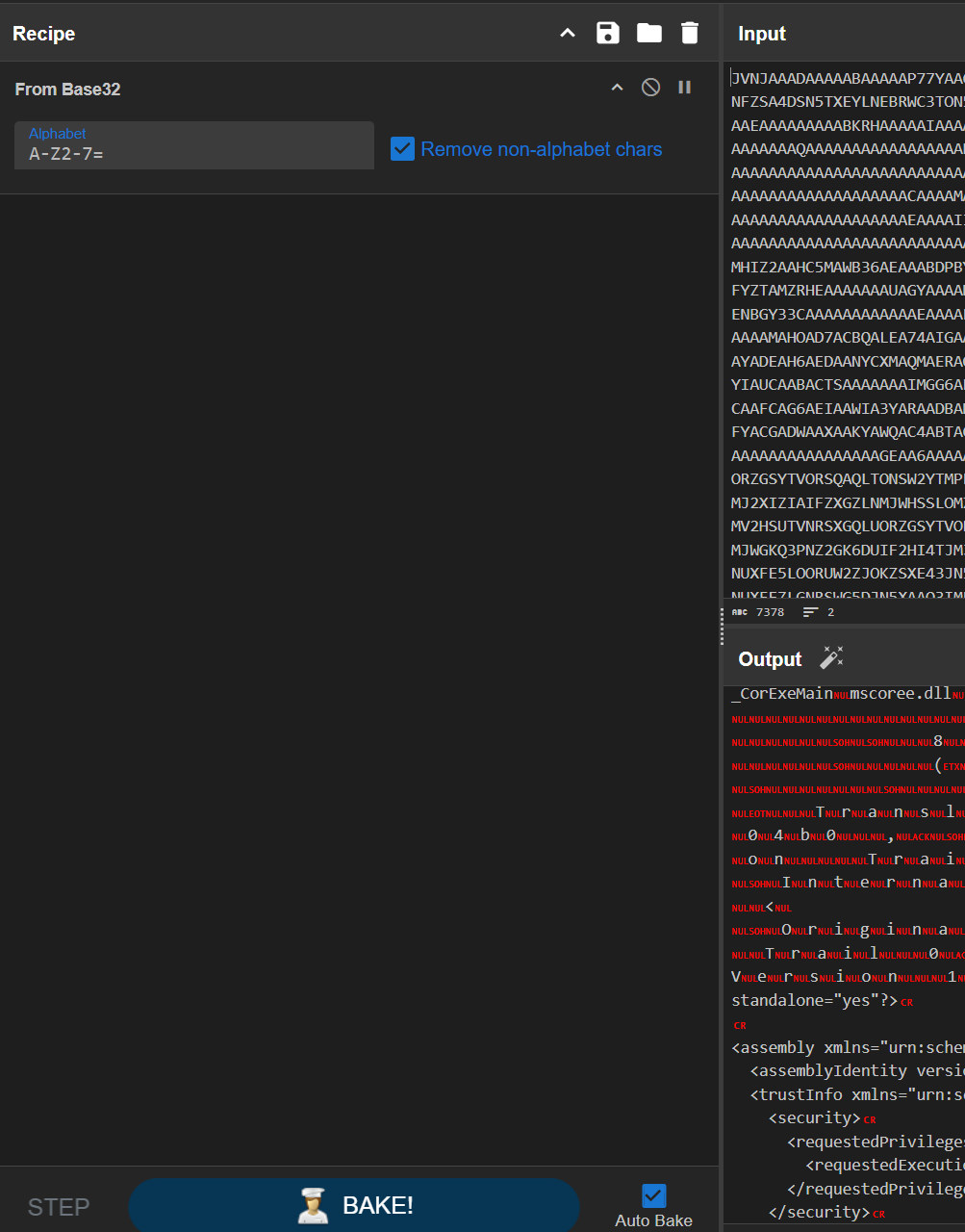
Seeing some of the strings output led me to believe that it is a C# application. We could verify that with Detect It Easy, but dotPeek can quickly tell us also.
dotPeek#
I used dotPeek to analyze the binary, but ILSpy and dnSpy (my favorite) work just as well.
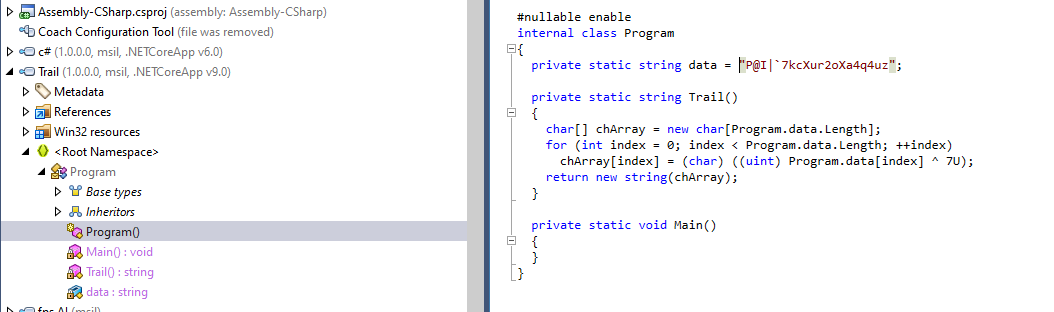
Decompiled code
// Decompiled with JetBrains decompiler
// Type: Program
// Assembly: Trail, Version=1.0.0.0, Culture=neutral, PublicKeyToken=null
// MVID: E81CB84C-9A42-4961-A935-B08895D17769
// Assembly location: C:\Users\NSSte\Downloads\download.exe

#nullable enable
internal class Program
{
  private static string data = "P@I|`7kcXur2oXa4q4uz";

  private static string Trail()
  {
    char[] chArray = new char[Program.data.Length];
    for (int index = 0; index < Program.data.Length; ++index)
      chArray[index] = (char) ((uint) Program.data[index] ^ 7U);
    return new string(chArray);
  }

  private static void Main()
  {
  }
}
Script to undo#
def decrypt(data: str) -> str:
    return ''.join(chr(ord(c) ^ 7) for c in data)

encrypted_data = "P@I|`7kcXur2oXa4q4uz"
decrypted_text = decrypt(encrypted_data)

print(f"Decrypted text: {decrypted_text}")
Mile High Flag 3#
There is a mysterious signal message sent in MQTT
{
  "broadcast_event": 12,
  "data": "tnNHCuwT/ixFcK9BIcyufJDohSTwxb76IoU+SJXdwO8SI63YopxMUcU2Vu5/JnpY",
  "date": "02/04/25",
  "time": "02:36AM UTC",
  "message": "Mystery Signal"
}
I am thinking that the badge must be able to decode the data. So to send my badge this data I edit the NVS data on my badge to point to my own MQTT server. (see Editing NVS Data in Extra) Then I run the following command to dump most of memory.
python -m esptool dump_mem 0x40380000 393216 out.bin
We choose this memory section based on the ESP32 docs. (S3 mem sections from @precurse) (After further reading of docs we miss some of the upper parts but as this command works I am not going to deal with the headaches and change it)
Running strings on the binary file yields no useful results so instead I run stringsSquared (a tool I made for this, see Extra)
python stringsSquared.py out.bin | grep WGN{
Which outputs the flag
Decode: WGN{h1gh_n00n_sh0wd0wn}
Mile High Flag 4#
The LED in the bottom right can randomly flash.
https://youtube.com/shorts/ijG1FVzJa5s
The hardest part with this is seeing how many colors there are. It turns out there are only 4 (blue, red, green and cyan); the others are just the LED transitioning.
In our reading, the colors (red, blue, cyan) are “carriers” of the dot/dash information while green isn’t part of the signal at all – it is used as a separator. Moreover, when a letter is repeated three times (e.g. “RRR”, “CCC”, “BBB”) that indicates a long pulse (a “dash”), while a lone letter (e.g. “R”, “B”, “C”) is a short pulse (a “dot”). Finally, a single green “G” between pulses means “don’t break the letter” while a triple green “GGG” marks the end of a letter.
Let’s illustrate this with the data you provided. (We ignore the “///” header.)
Step 1. Separate out pulses from the green separators
The non‐green lines (the pulses) are interleaved with green lines. The single “G” lines mark a pause between pulses within one Morse–encoded letter, while a “GGG” signals that one letter is finished. (That is why sometimes you see a “GGG” on its own.)
For example, the very first part is:
RRR G R G C G R GGG
Here the pulses are:
- RRR – a long red pulse (→ “dash”)
- R – a short red pulse (→ “dot”)
- C – a short cyan pulse (→ “dot”)
- R – a short red pulse (→ “dot”)
So the first Morse symbol is: dash dot dot dot
Step 2. Interpret the dot/dash pulses as Morse code
Recall that in Morse code, dash dot dot dot is the letter B.
Now let’s briefly go through all the groups (each group being the pulses between “GGG” separators):
| Group | Pulses | Morse | Letter |
|---|---|---|---|
| 1 | RRR (dash), R (dot), C (dot), R (dot) | –··· | B |
| 2 | B (dot), CCC (dash), B (dot), B (dot) | ·–·· | L |
| 3 | B (dot), RRR (dash) | ·– | A |
| 4 | RRR (dash), BBB (dash), B (dot), C (dot) | ––·· | Z |
| 5 | B (dot) | · | E |
| 6 | CCC (dash) | – | T |
| 7 | B (dot), C (dot), C (dot), B (dot) | ···· | H |
| 8 | R (dot) | · | E |
| 9 | BBB (dash) | – | T |
| 10 | B (dot), CCC (dash), B (dot) | ·–· | R |
| 11 | B (dot), BBB (dash) | ·– | A |
| 12 | B (dot), R (dot) | ·· | I |
| 13 | B (dot), CCC (dash), R (dot), B (dot) | ·–·· | L |
Step 3. Put it all together
Reading the letters in order gives:
B L A Z E T H E T R A I L
Mile High Flag 5+#
The images on the site have some interesting metadata.
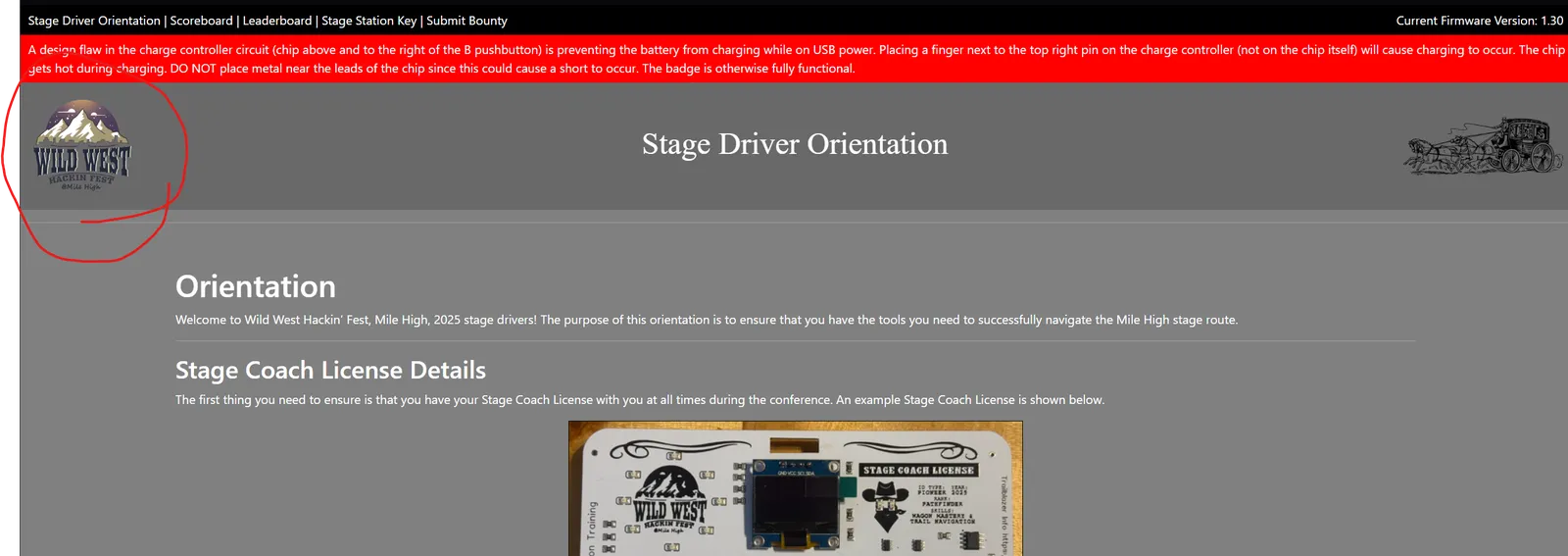
https://www.aperisolve.com/d053eca26e2ceded99a82cdc14a707ed

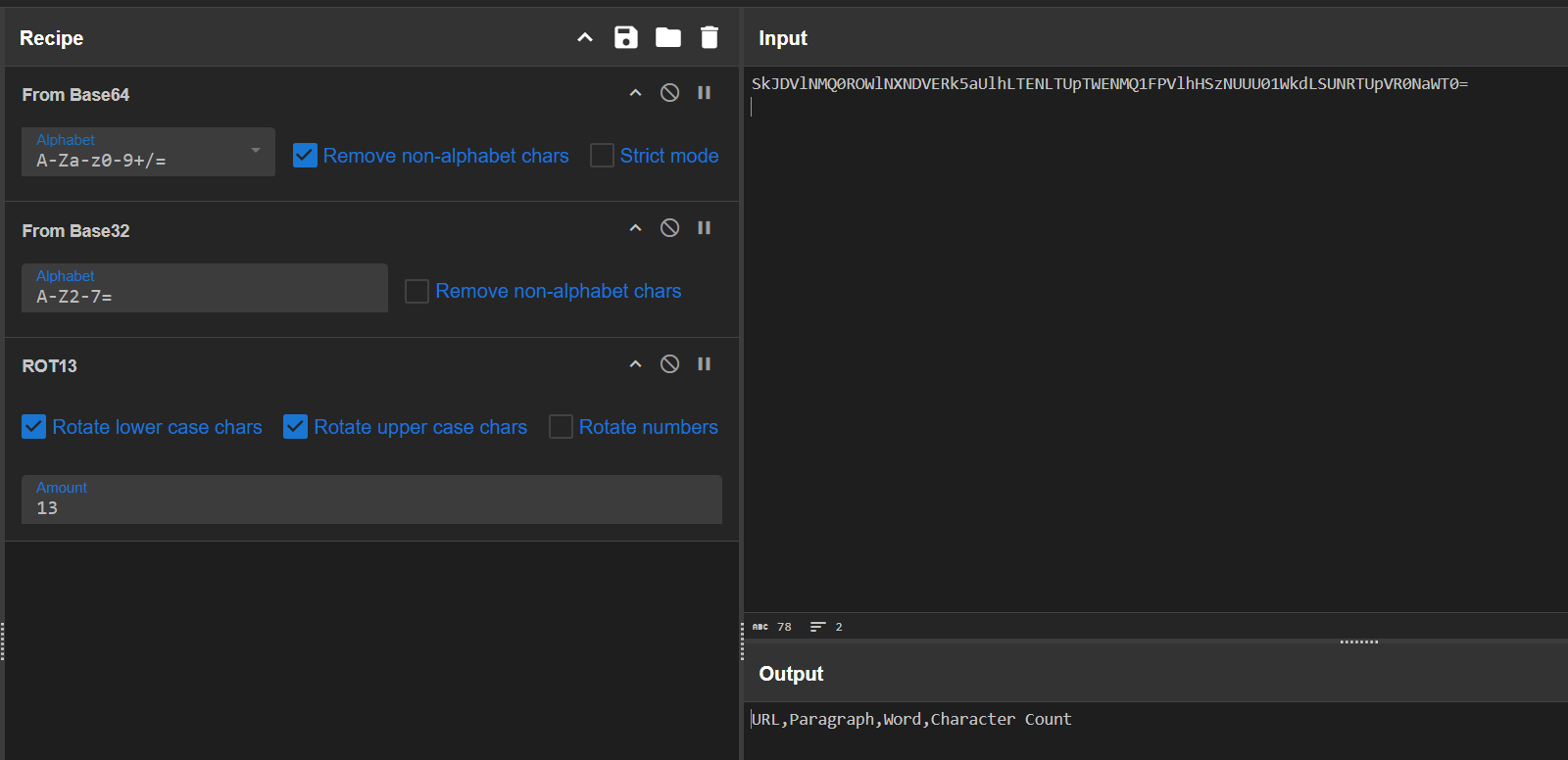
This gives us how the messages will be organized.
Downloading all the images to a folder on my computer, I then run
strings * | awk 'length($0) > 30'
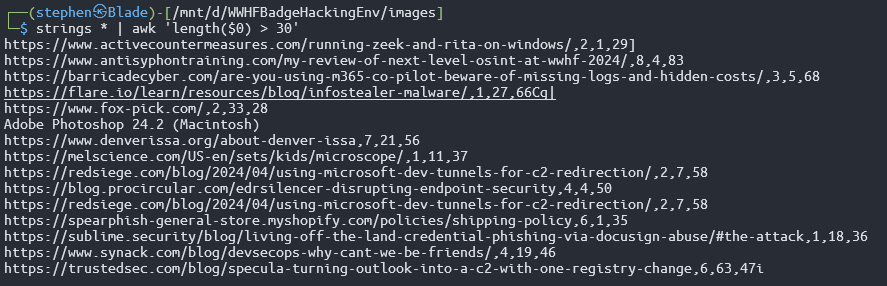
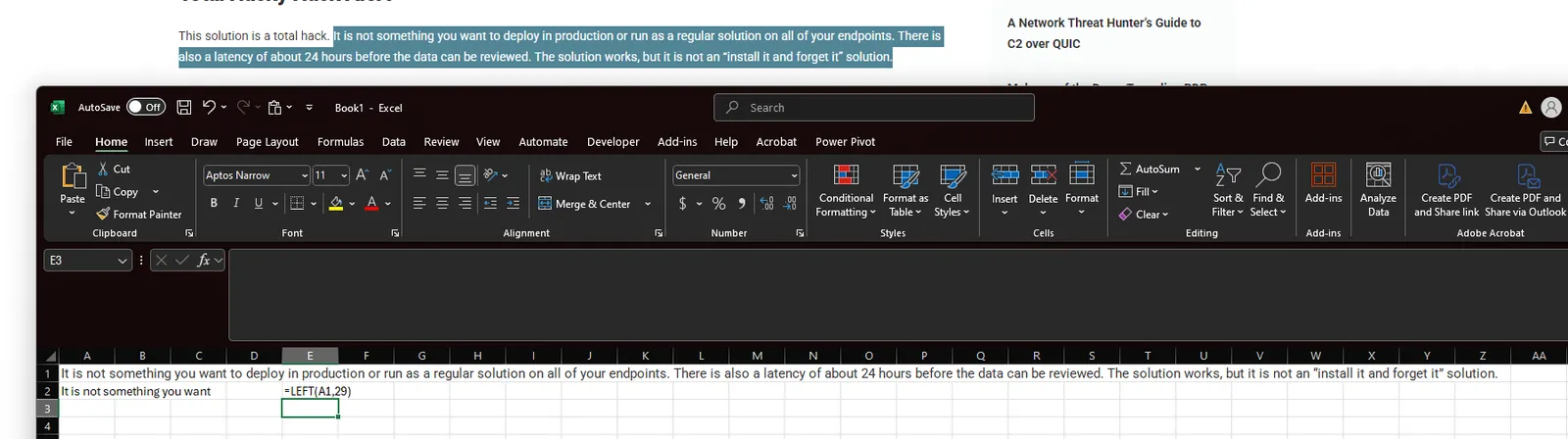
The output message is then the flag you put in.
Charger Fix#
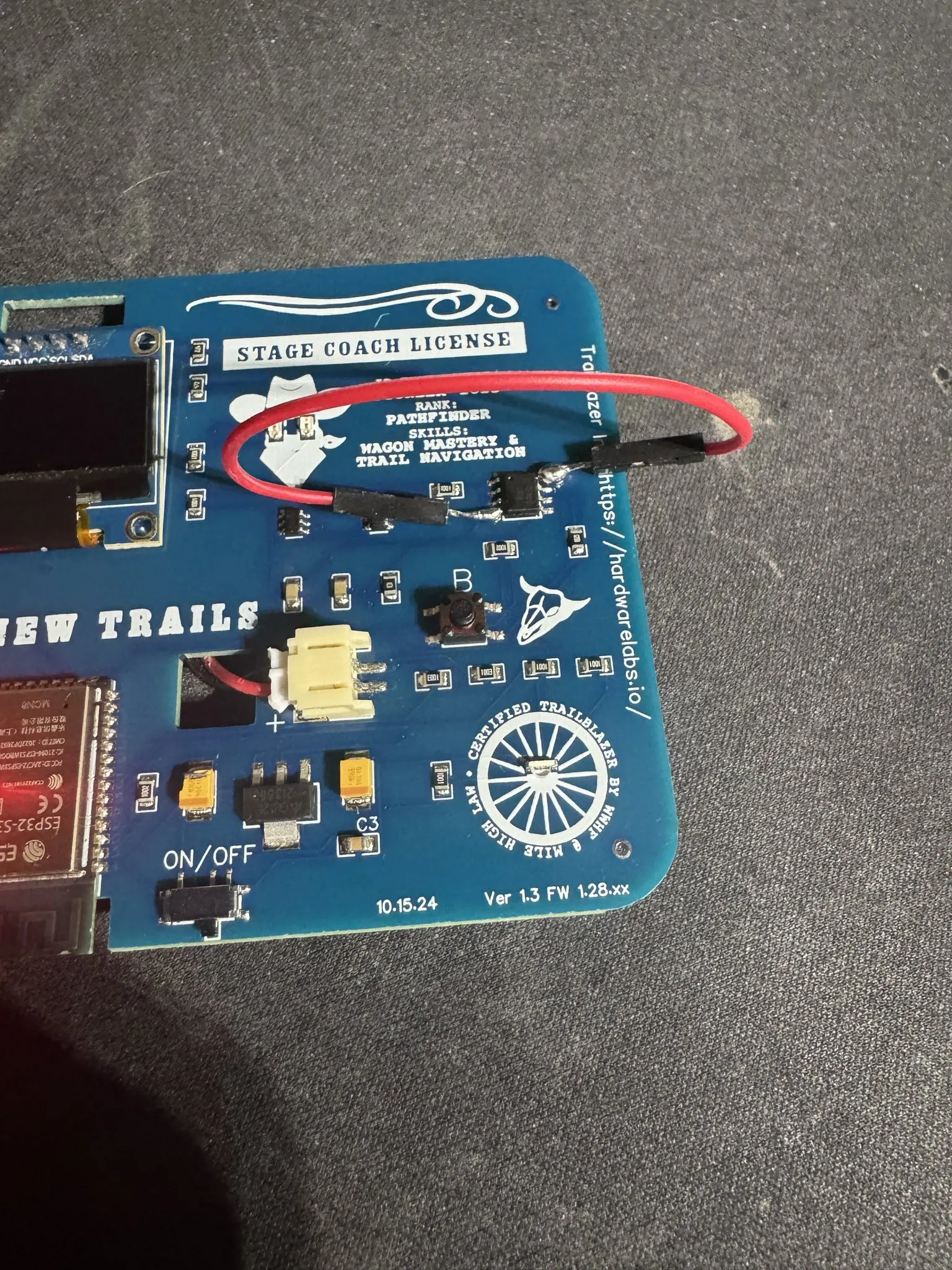
The TP4056 chip has a trace issue on the PCB. This can be solved by soldering a wire from pin 4 to 8. This just jumps the 5v to the chip enable pin telling the chip to work.
Image (do not roast the solder job, it was rushed at the conference with an iron that complains too much):
Other Random Things About This Badge#
The eyes are IR LEDs and don't seem to do anything interesting.
My flash dump: https://bucket.ics.red/flash_contents_noscreen.bin
Further Reading#
TCM Certification (Affiliate Link)#
TCM Security IoT Hacking Course
https://certifications.tcm-sec.com/pipa/?ref=162
Matt Brown YouTube#
Channel: https://www.youtube.com/@mattbrwn
Discord: https://discord.com/invite/GjVxUnrQKC
Antisyphon IoT Hacking Class#
https://www.antisyphontraining.com/course/intro-to-iot-hacking-with-rick-wisser-and-dave-fletcher/
Custom Firmware#
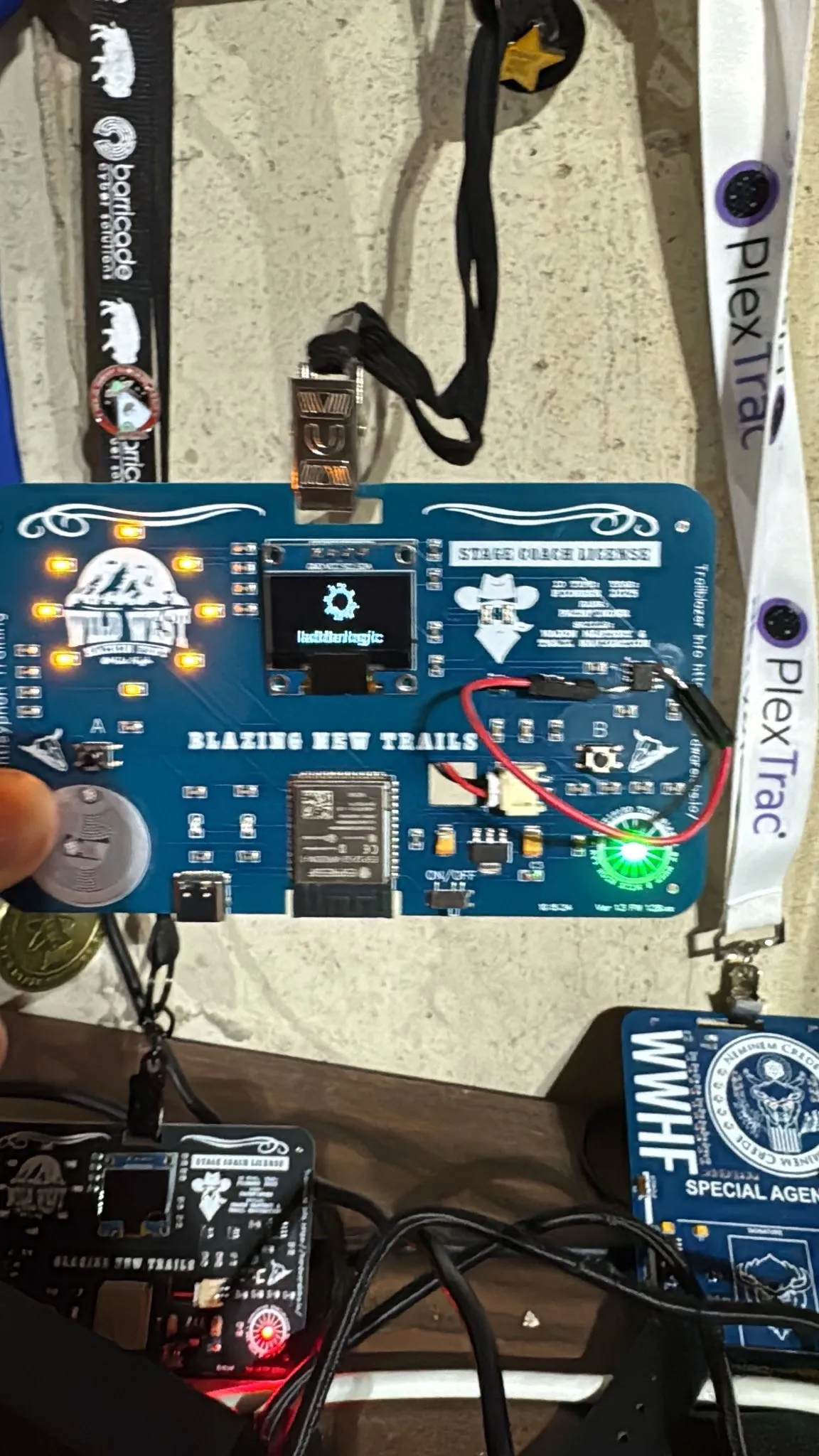
https://github.com/Cooperw/ww-pirate-badge-fw
This can be used to add custom LED flash sequences to your badge.
Adding a Reset#
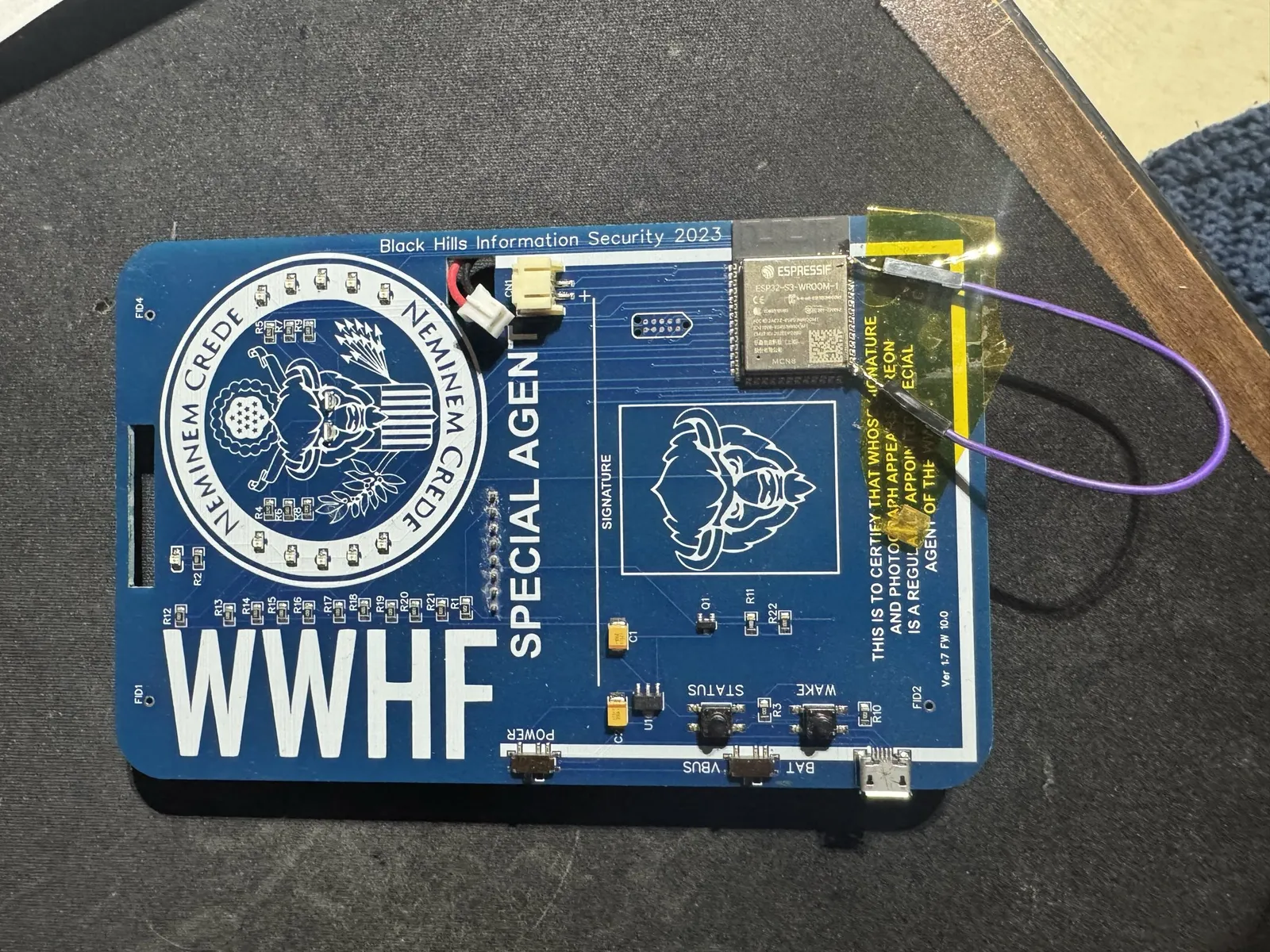
If you can talk to the board you might need to hit the reset "button". You need to bridge these two pins (top and bottom). I just soldered a wire.
Extra#
How the scanners report a scan#
You might notice some activity on MQTT when you scan your badge but this is not how the server determines if a scan takes place. It uses an HTTP POST request to /bounties.
It can be represented as
import requests

url = "https://hardwarelabs.io/bounties"

payload = "{\r\n    \"mac_address\": \"30:30:F9:7B:90:AC\",\r\n    \"rfid\": \"f4bfd940\"\r\n}"
headers = {}

response = requests.request("POST", url, headers=headers, data=payload)

print(response.text)
or
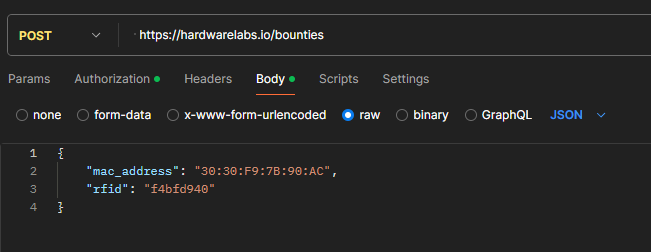
where rfid is the lowercase UID. We discovered the format through the serial messages produced by the badge reader.
Badge reader serial:
[BADGE] Loading badge config...
[BADGE] Loading bounties...
[BADGE] WWHF Badge v1.27
[BADGE] EC:DA:3B:5E:12:78
[WiFi] Wi-Fi ready
[WiFi] Station mode started
[BOUNTY] Mounted bounty cache filesystem
[WiFi] Station connected to AP
[RFID] Bounty Captured: f4bfd940
From here I wrote a script to brute force all the OUIs we saw on the network to try to hunt down the last event 5 scanner (We later found out this doesn't exist)
Scanner Brute Force#
import aiohttp
import asyncio
import json
import itertools
from tqdm import tqdm

url = "https://hardwarelabs.io/bounties"

# OUI of the scanners
ouis = ["34:B7:DA:5E","34:B7:DA:5F","34:B7:DA:5D"]

mac_suffix_range = range(0x00, 0xFF + 1)  # This will range from 00 to FF (0-255 in hex)

headers = {
    'Content-Type': 'application/json',
    'Authorization': 'Bearer <your-api-token>'
}
rfid = "f4bfd940"

# Limit the number of concurrent requests
MAX_CONCURRENT_REQUESTS = 1000

async def send_request(session, mac_address):
    payload = json.dumps({
        "mac_address": mac_address,
        "rfid": rfid
    })

    async with session.post(url, headers=headers, data=payload) as response:
       # print(await response.text())
        #print(response.status)
        if response.status == 201:  # Only print if the status is 201
            response_text = await response.text()
            print(f"Testing MAC: {mac_address} -> Response: {response_text}")
            return True  # Indicating success
        return False  # Indicating failure

async def brute_force_mac_addresses():
    total_mac_addresses = len(ouis) * (0xFF + 1) * (0xFF + 1)
    progress = tqdm(total=total_mac_addresses, desc="Brute-forcing MAC addresses", unit="request")

    # Set up the aiohttp session
    async with aiohttp.ClientSession() as session:
        tasks = []
        for oui in ouis:
            for suffix1, suffix2 in itertools.product(mac_suffix_range, repeat=2):
                mac_address = f"{oui}:{suffix1:02X}:{suffix2:02X}"
                print(mac_address)

                # Create the task for each request
                task = asyncio.ensure_future(send_request(session, mac_address))
                tasks.append(task)

                # Send a batch of requests
                if len(tasks) >= MAX_CONCURRENT_REQUESTS:
                    results = await asyncio.gather(*tasks)
                    tasks = []  # Reset the task list
                    progress.update(MAX_CONCURRENT_REQUESTS)

        # Await any remaining tasks
        if tasks:
            await asyncio.gather(*tasks)
            progress.update(len(tasks))

    progress.close()  # Close the progress bar when done

if __name__ == "__main__":
    asyncio.run(brute_force_mac_addresses())
All scans solver#
This code is from @CW0 and his repo
# claim_bounties.py :: GPT-4o

# usage: python claim_bounties.py 7bdfd941

import requests
import sys
import argparse
import time
import os

'''
export API_BEARER_TOKEN="<your-api-token>"

7bdfd940 shiloh
f4b4d940 logix
7159d940 vort
fcb9d940 alex
a3c9d940 rsulliva
57b4d940 netwarsninja66
'''

def main():
    # Define the list of MAC addresses
    mac_addresses = [
        "EC:DA:3B:5D:D0:7C",
        "EC:DA:3B:5E:0C:24",
        "EC:DA:3B:5E:0C:34",
        "EC:DA:3B:5E:0C:88",
        "EC:DA:3B:5E:11:D8",
        "EC:DA:3B:5E:11:E8",
        "EC:DA:3B:5E:11:F0",
        "EC:DA:3B:5E:11:F4",
        "EC:DA:3B:5E:12:30",
        "EC:DA:3B:5E:12:34",
        "EC:DA:3B:5E:12:78",
        "EC:DA:3B:5E:12:8C",
        "EC:DA:3B:5E:12:90",
        "EC:DA:3B:5E:12:A8",
        "EC:DA:3B:5E:16:D0",
        "EC:DA:3B:5E:16:F0",
        "EC:DA:3B:5E:1F:80",
        "EC:DA:3B:5E:1F:C8",
        "EC:DA:3B:5E:48:30",
        "EC:DA:3B:5E:53:F8",
        "EC:DA:3B:5E:6D:48",
        "EC:DA:3B:5E:6D:54",
        "EC:DA:3B:5E:6D:5C",
        "EC:DA:3B:5E:6D:68",
        "EC:DA:3B:5E:6D:70",
        "EC:DA:3B:5E:6D:80",
        "EC:DA:3B:5F:5B:50",
        "EC:DA:3B:5F:FD:90",
        "EC:DA:3B:5F:FD:94",
        "EC:DA:3B:5F:FD:AC",
        "EC:DA:3B:5F:FD:B4",
        "EC:DA:3B:5F:FD:C0",
        "EC:DA:3B:5F:FD:C4",
        "EC:DA:3B:5E:17:30" # unlisted
    ]

    # Set up command-line argument parsing
    parser = argparse.ArgumentParser(description='Send POST requests to hardwarelabs.io/bounties.')
    parser.add_argument('rfid', type=str, help='RFID value to include in the POST request.')
    args = parser.parse_args()

    rfid = args.rfid

    endpoint = "https://hardwarelabs.io/bounties"

    # Retrieve the Bearer Token from environment variables
    bearer_token = os.getenv('API_BEARER_TOKEN')
    if not bearer_token:
        print("Error: API_BEARER_TOKEN environment variable not set.")
        sys.exit(1)

    headers = {
        "Content-Type": "application/json",
        "Authorization": f"Bearer {bearer_token}"
    }

    success_count = 0
    error_count = 0

    for index, mac in enumerate(mac_addresses, start=1):
        payload = {
            "mac_address": mac,
            "rfid": rfid
        }

        try:
            response = requests.post(endpoint, json=payload, headers=headers)
            if response.status_code == 201:
                success_count += 1
                print(f"SUCCESS [{index}/{len(mac_addresses)}]: MAC {mac} - Status Code: {response.status_code}")
            else:
                error_count += 1
                print(f"ERROR   [{index}/{len(mac_addresses)}]: MAC {mac} - Status Code: {response.status_code} - Response: {response.text}")
        except requests.exceptions.RequestException as e:
            error_count += 1
            print(f"EXCEPTION[{index}/{len(mac_addresses)}]: MAC {mac} - {e}")

        # Rate limiting: Wait for 5 seconds before the next request, except after the last request
        if index < len(mac_addresses):
            time.sleep(5)  # Pause for 5 seconds

    print("\n=== Summary ===")
    print(f"Total Requests: {len(mac_addresses)}")
    print(f"Successful (201): {success_count}")
    print(f"Failed: {error_count}")

if __name__ == "__main__":
    main()
Badge Reader Firmware#
You can download it from here: https://bucket.ics.red/reader.bin
Simulating the Binary#
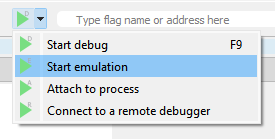
Cutter will attempt to simulate the code.
Extra MQTT Topic#
Badge registration is performed using the MQTT topic /badges/{BadgeName}
StringsSquared#
Decodes hex strings from memory
python stringsSquared.py mem_dump.bin
Code
import subprocess
import argparse

def strings_and_hex_decode(file_path):
    try:
        # Step 1: Run `strings` on the file and capture the output
        result = subprocess.run(['strings', file_path], stdout=subprocess.PIPE, text=True)
        output = result.stdout

        # Step 2: Process each line of the output
        for line in output.splitlines():
            # Remove whitespace and check if it's a valid hex string
            clean_line = line.strip()
            try:
                # Attempt to decode as hex
                decoded_line = bytes.fromhex(clean_line).decode('utf-8')
                print(f"Original: {clean_line} | Decoded: {decoded_line}")
            except ValueError:
                # Skip lines that are not valid hex
                print(f"Not hex: {clean_line}")
    except Exception as e:
        print(f"Error: {e}")

if __name__ == "__main__":
    # Argument parsing
    parser = argparse.ArgumentParser(description="Extract strings from a file and decode hex lines.")
    parser.add_argument("file", help="Path to the file to process")
    args = parser.parse_args()

    # Call the function with the provided file path
    strings_and_hex_decode(args.file)
Editing NVS Data#
git clone https://github.com/ladderlogix/esp_nvs_editor
Get nvs.bin from ESP32 Image Parser when dumping the partition.
python main.py json nvs.bin nvs.json
Open the JSON. Strings are hex encoded (will change in a future PR).
python main.py bin nvs.json nvs.patched
Flash to the chip (run from ESP-IDF 5.3, under components\partition_table):
python .\parttool.py --port COM5 write_partition --partition-name=nvs --input "D:\NVSReplacing\nvs.patched.bin"
binaryShiftDecode#
Tool to help read binary but if the data order is moved around. This was a tool I made in preparation for Mile High.
Takes in a file with binary data on each line, i.e.
0011
1011
0110
and will try to hex decode it.
python main.py
A GUI will pop up where you can pick a file.
Code
import tkinter as tk
from tkinter import filedialog, messagebox

# Shift a binary string to the right
def shift_binary(binary):
    return binary[-1] + binary[:-1]

# Decode binary string to ASCII character
def decode_binary(binary):
    try:
        return chr(int(binary, 2))
    except ValueError:
        return "?"

# Load binary data from a file
def load_binary_data():
    """Prompt the user to select a file and load binary data."""
    global binary_data, current_data

    # Open file dialog to select a file
    file_path = filedialog.askopenfilename(
        title="Select a file",
        filetypes=(("Text Files", "*.txt"), ("All Files", "*.*"))
    )

    if not file_path:
        return  # User canceled the file selection

    try:
        with open(file_path, "r") as file:
            binary_data = [line.strip() for line in file.readlines() if line.strip()]

        # Validate binary strings
        for binary in binary_data:
            if len(binary) != 8 or not set(binary).issubset({'0', '1'}):
                raise ValueError(f"Invalid binary string: {binary}")

        # Set initial data and update the display
        current_data = binary_data[:]
        update_display()
    except Exception as e:
        messagebox.showerror("Error", f"Failed to load data: {e}")
        binary_data = []
        current_data = []

# Update the display
def update_display():
    """Update the binary strings and their decoded characters displayed in the GUI."""
    for i in range(len(binary_labels)):
        if i < len(current_data):
            binary = current_data[i]
            binary_labels[i].config(text=binary)
            decoded_labels[i].config(text=decode_binary(binary))
        else:
            binary_labels[i].config(text="")  # Clear unused labels
            decoded_labels[i].config(text="")

# Shift binary strings to the right and update the display
def next_page():
    """Shift all binary strings to the right."""
    global current_data
    current_data = [shift_binary(binary) for binary in current_data]
    update_display()

# Initialize the GUI
root = tk.Tk()
root.title("Binary Viewer with Shifts and Decoding")

# Initialize variables
binary_data = []
current_data = []

# Frame for binary strings and decoded characters
frame = tk.Frame(root)
frame.pack(pady=10)

# Create labels for binary strings and decoded characters
binary_labels = []
decoded_labels = []
rows_to_display = 10  # Adjust based on how many rows you want visible at once

for _ in range(rows_to_display):
    row = tk.Frame(frame)
    row.pack(side=tk.TOP, fill=tk.X, pady=2)

    binary_label = tk.Label(row, width=15, text="", anchor="w")
    binary_label.pack(side=tk.LEFT, padx=5)
    binary_labels.append(binary_label)

    decoded_label = tk.Label(row, width=5, text="", anchor="w")
    decoded_label.pack(side=tk.LEFT, padx=5)
    decoded_labels.append(decoded_label)

# Buttons for file loading and shifting
button_frame = tk.Frame(root)
button_frame.pack(pady=5)

load_button = tk.Button(button_frame, text="Load File", command=load_binary_data)
load_button.pack(side=tk.LEFT, padx=5)

next_button = tk.Button(button_frame, text="Next", command=next_page)
next_button.pack(side=tk.LEFT, padx=5)

# Start the GUI event loop
root.mainloop()